- [Part 1] Rebuilding an Abandoned Pomodoro App — Why 'Lo-Fi Focus Studio' and 'Focus-to-Earn'?
- [Part 2] Balancing Monetization and Fairness — Rewarded Ads & a 4-Layer Anti-Abuse Architecture
- [Part 3] "Synthetic Audio Sounds Fake" — Adopting Google Studio Field Recordings & a Multi-Channel Ambient Mixer
- [Part 4] Bypassing the iOS 26 JIT Memory Protection Crash & Crafting the Apple Watch Series 10 Circular UI (Current Post)
- [Part 5] A Timer That Never Stops — Mastering Android Doze, iOS Silent Audio Loops, and Bidirectional Watch Sync
Few moments in cross-platform mobile engineering are more jarring than an app that runs flawlessly in simulators but crashes within 0.1 seconds on a physical device running the newest OS. In Part 4, we dissect the
EXC_BAD_ACCESS (SIGKILL) / brk #0xf00d crash on iOS 26.3.1 caused by Apple's TXM (Trusted Execution Monitor) blocking Flutter Debug JIT memory pages, explain how we bypassed it via AOT Release builds, and walk through our native SwiftUI circular ring UI for Apple Watch Series 10 (watchOS 26.2).
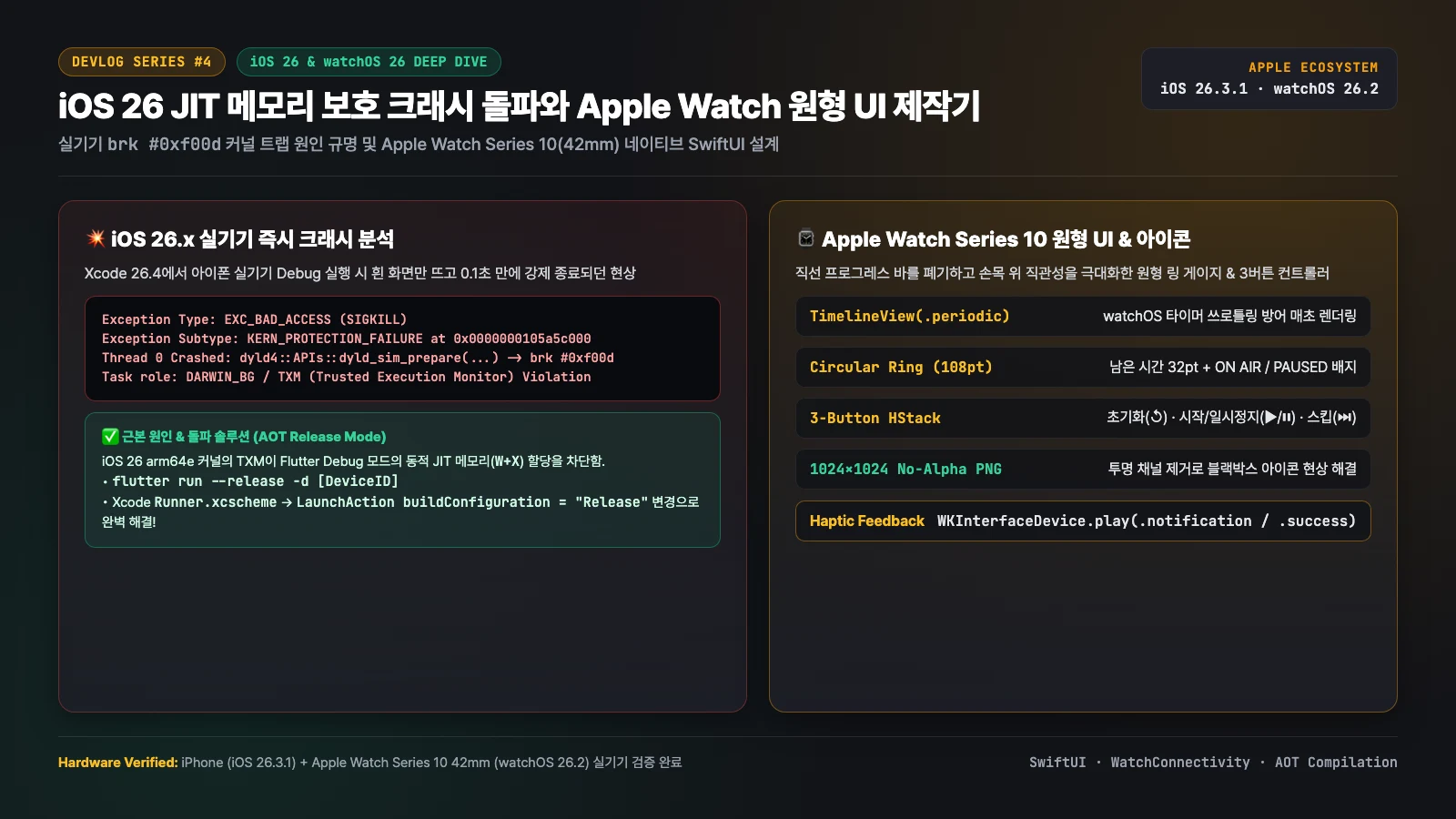
1. Obstacle #1: Instant 0.1-Second Crash on a Physical iOS 26.3.1 iPhone
After verifying the Android build, we connected a physical iPhone running iOS 26.3.1 to Xcode 26.4 and hit Run (▶). The app icon appeared on the home screen, flashed a white launch screen for a split second, and terminated immediately without printing a single line of Dart logs in the console.
To uncover what was killing the process before the Flutter engine could even initialize, we pulled the raw device crash report (.ips) and inspected Thread 0:
Exception Type:  EXC_BAD_ACCESS (SIGKILL)
Exception Subtype: KERN_PROTECTION_FAILURE at 0x0000000105a5c000
Termination Reason: CODESIGNING 2 Invalid Page

Thread 0 Crashed:
0   dyld   0x00000001a1b2c4d8 dyld4::APIs::dyld_sim_prepare(...) + 192
    -> brk #0xf00d
Kernel Triage:
VM - (arg = 0x0)Returned success with no page
TXM [Error]: CodeSignature validation failed for JIT region
The Culprit: iOS 26 Kernel TXM Blocking Dynamic JIT Memory Pages
The assembly trap brk #0xf00d and the TXM (Trusted Execution Monitor) kernel triage message revealed the root cause:
- Root Cause: Flutter's
Debugbuild mode relies on a JIT (Just-In-Time) Dart VM that dynamically allocates writable/executable memory pages at runtime to support Hot Reload. On iOS 26.x (arm64e), Apple's hardened TXM (Trusted Execution Monitor) strictly rejects unsigned dynamic JIT memory regions unless special debugger entitlements are attached by the host, immediately killing the process withSIGKILL (brk #0xf00d). - The Fix: Running in AOT (Ahead-Of-Time) Release mode compiles all Dart code ahead of time into signed native ARM64 machine instructions—requiring zero JIT memory pages!
In addition to running flutter run --release from the CLI, we updated ios/Runner.xcodeproj/xcshareddata/xcschemes/Runner.xcscheme so that pressing Run (▶) directly inside Xcode launches the Release configuration without triggering TXM traps:
<!-- ios/Runner.xcodeproj/xcshareddata/xcschemes/Runner.xcscheme -->
<LaunchAction
   buildConfiguration = "Release"
   selectedDebuggerIdentifier = ""
   selectedLauncherIdentifier = "Xcode.IDEFoundation.Launcher.PosixSpawn"
   launchStyle = "0"
   useCustomWorkingDirectory = "NO"
   ignoresPersistentStateOnLaunch = "NO"
   debugDocumentVersioning = "YES">
2. Obstacle #2: Designing a Glanceable Circular UI for Apple Watch Series 10
With the iPhone running smoothly, we turned to the companion watchOS app (PomodoroWatchAppRico Watch App) on an Apple Watch Series 10 42mm (watchOS 26.2). In v1.0, the watch app used a cramped horizontal progress bar and plain text buttons that felt like a shrunk-down phone screen.
A smartwatch interface must be glanceable in 0.5 seconds and operable with a single tap. We redesigned ContentView.swift around a native circular studio layout:
| Watch UI Component | SwiftUI Implementation | UX & Engineering Benefit |
|---|---|---|
| Top Session Capsule | 🍅 FOCUS / ☕ SHORT BREAK |
Dynamically switches between Warm Amber (#F59E0B) and Soft Emerald (#10B981) |
| Center Circular Ring | Circle().trim(from: 0, to: ratio) |
108×108pt circular gauge framing a 32pt monospaced countdown and ON AIR / PAUSED state |
| Bottom 3-Button Bar | Reset (↺) · Play/Pause (▶/⏸) · Skip (⏭) |
Ergonomic icon buttons sized for zero-mistouch wrist interaction |
| TimelineView Cadence | TimelineView(.periodic(by: 1.0)) |
Guarantees every-second UI updates even when watchOS throttles background Timer objects |
Production watchOS SwiftUI Implementation
Because watchOS aggressively throttles standard Foundation.Timer instances to conserve battery, we wrapped the view hierarchy in TimelineView(.periodic(from: .now, by: 1.0)) and computed the remaining time directly from targetEndEpochMs:
// ios/PomodoroWatchAppRico Watch App/ContentView.swift — Circular Ring & 3-Button UI
struct ContentView: View {
    @StateObject private var viewModel = WatchViewModel()
    @Environment(\.scenePhase) private var scenePhase

    private let amberColor = Color(red: 0.96, green: 0.62, blue: 0.04)
    private let emeraldColor = Color(red: 0.06, green: 0.73, blue: 0.51)
    private let stopRedColor = Color(red: 0.94, green: 0.27, blue: 0.27)

    var activeAccentColor: Color {
        viewModel.isFocusState ? amberColor : emeraldColor
    }

    var body: some View {
        TimelineView(.periodic(from: .now, by: 1.0)) { context in
            let currentRatio = viewModel.displayProgressRatio(at: context.date)
            let currentTimeText = viewModel.displayTimeRemaining(at: context.date)

            VStack(spacing: 8) {
                // 1. Top Session Capsule Badge
                Text(viewModel.stateTitle)
                    .font(.system(size: 12, weight: .bold, design: .rounded))
                    .foregroundColor(activeAccentColor)
                    .padding(.horizontal, 10)
                    .padding(.vertical, 3)
                    .background(activeAccentColor.opacity(0.18))
                    .clipShape(Capsule())

                // 2. Center Circular Progress Ring + Monospaced Countdown
                ZStack {
                    Circle()
                        .stroke(Color.white.opacity(0.12), lineWidth: 6)

                    Circle()
                        .trim(from: 0, to: CGFloat(currentRatio))
                        .stroke(
                            activeAccentColor,
                            style: StrokeStyle(lineWidth: 6, lineCap: .round)
                        )
                        .rotationEffect(.degrees(-90))
                        .animation(.easeOut(duration: 0.25), value: currentRatio)

                    VStack(spacing: 2) {
                        Text(currentTimeText)
                            .font(.system(size: 32, weight: .heavy, design: .rounded))
                            .monospacedDigit()
                            .foregroundColor(.white)

                        Text(viewModel.isRunning ? "ON AIR" : "PAUSED")
                            .font(.system(size: 9, weight: .semibold, design: .rounded))
                            .foregroundColor(viewModel.isRunning ? activeAccentColor : .gray)
                    }
                }
                .frame(width: 108, height: 108)

                // 3. Bottom 3-Button Controller (Reset / Start·Pause / Skip)
                HStack(spacing: 12) {
                    Button(action: { viewModel.sendResetCommand() }) {
                        Image(systemName: "arrow.counterclockwise")
                    }
                    .buttonStyle(.bordered).tint(.gray)

                    Button(action: { viewModel.sendStartPauseCommand() }) {
                        Image(systemName: viewModel.isRunning ? "pause.fill" : "play.fill")
                    }
                    .buttonStyle(.borderedProminent)
                    .tint(viewModel.isRunning ? stopRedColor : activeAccentColor)

                    Button(action: { viewModel.sendSkipCommand() }) {
                        Image(systemName: "forward.end.fill")
                    }
                    .buttonStyle(.bordered).tint(.gray)
                }
            }
        }
    }
}
3. Polishing the Details: Fixing the Black-Circle Watch Icon Trap
When we exited to the watchOS honeycomb home grid, our app icon rendered as a blank black circle. Two issues were responsible:
- The watch target's
Assets.xcassets/AppIcon.appiconsetwas missing its1024x1024master icon entry, and - Apple's iOS and watchOS icon pipelines forbid alpha channels (RGBA transparency)—any transparent pixels either render as solid black artifacts or trigger App Store Connect validation errors.
We generated a high-contrast studio icon (warm amber progress ring and tomato emblem over a deep charcoal background) flattened into a pure 24-bit RGB (no-alpha) 1024×1024 PNG and bound it to both the iOS and watchOS asset catalogs.
4. Up Next: Unstoppable Background Timers & 4-OS Bidirectional Watch Sync
With the UI and audio engine complete, the hardest distributed systems challenge of the entire project remained:
- "How do we keep the timer accurate to the millisecond even when the phone screen is locked, throttled by Android Doze / iOS suspension, or swipe-killed by the user?"
- "How do we synchronize state bidirectionally in real time across iPhone, Apple Watch, Android, and Galaxy Watch without race-condition ping-pong loops?"
In our finale, [Part 5: A Timer That Never Stops — Mastering Android Doze, iOS Silent Audio Loops, and Bidirectional Watch Sync], we open-source the complete architecture and native Swift/Kotlin code.