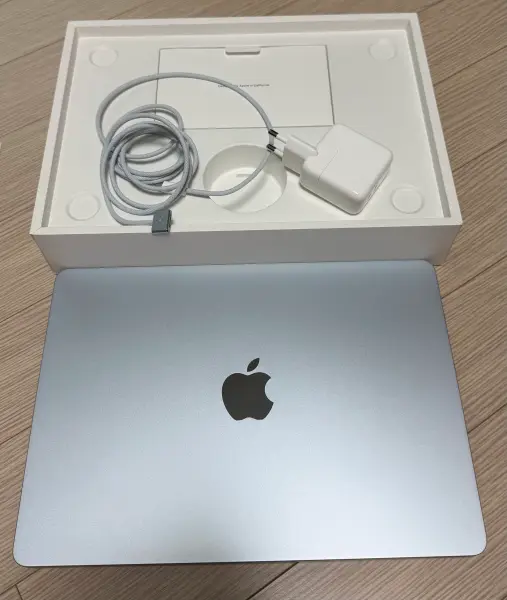
You buy a new MacBook and use Migration Assistant to bring everything over from the old one. On the surface everything looks fine — until you try to edit a single photo and the download progress ring sits at almost-full for several minutes without ever completing.
You just wanted to rotate a photo, but the Rotating photo... progress window hangs forever,
and there is no cancel button. Meanwhile you have over 800GB of free disk space and a perfectly healthy connection.
This post is a record of how I traced a frozen iCloud Photos sync immediately after migrating from an M1 MacBook Air to an M5, using system logs. It also includes the two separate times I reached a wrong conclusion. Once I misdiagnosed the root cause entirely, and because of that misdiagnosis I nearly destroyed a batch of photo edits permanently. Honestly, that part was the more valuable lesson.
1. The Symptoms
- Context: Migrated M1 → M5 MacBook Air with Migration Assistant. Symptoms appeared the next day while organizing photos.
- Symptom 1: Entering edit mode in Photos leaves the original-download progress ring stuck near 99% for minutes with no progress.
- Symptom 2: Rotating a photo shows a
Rotating photo...modal that never finishes, with no way to cancel. - Common factor: Both actions require the full original of the asset.
For context, this Mac was configured with iCloud Photos + "Optimize Mac Storage," with about 23,000 photos in the library. In that mode the originals live only in iCloud and the Mac keeps downscaled versions, so every edit has to fetch the original on demand. A freshly migrated Mac has essentially no local originals at all. That is where things broke.
2. What It Was NOT (Ruling Things Out First)
"It's slow" has far too many possible causes. So I started by eliminating the usual suspects.
# Free disk space
df -h / /System/Volumes/Data

# iCloud reachability and response time
curl -s -o /dev/null -w "%{http_code} time=%{time_total}s\n" --max-time 10 https://www.icloud.com

# Low Power Mode / thermal throttling
pmset -g | grep -i lowpower
pmset -g therm| Check | Result | Verdict |
|---|---|---|
| Free disk space | 824GB available | Not the cause |
| iCloud connectivity | 50ms response, healthy | Not the cause |
| Low Data Mode | Off | Not the cause |
| Low Power Mode | Off | Not the cause |
| Thermal / power throttling | No warnings recorded | Not the cause |
Everything looked healthy. When the surface-level metrics tell you nothing, it is time to read the system logs directly.
3. Finding the Real Cause in the System Logs
log.
Typing log show ... directly gives you zsh: too many arguments.
You must invoke it by absolute path: /usr/bin/log.
This cost me a while at the start, because I thought the logs were simply empty.
3-1. Know the daemons involved
The Photos app does not work alone. Three daemons split the responsibilities.
cloudphotod— the iCloud Photos sync engine (CPL). Handles uploads and downloads. This was the culprit.photolibraryd— library database management. Serves asset metadata and resource requests.photoanalysisd— photo analysis. Runs background work such as people and scene recognition.
# Check the state of the Photos-related processes
ps axo pid,%cpu,%mem,etime,comm | grep -Ei "cloudphotod|photolibraryd|photoanalysisd|Photos"

# Read cloudphotod logs (absolute path is required)
/usr/bin/log show --last 15m --predicate 'process == "cloudphotod"' --style compact
3-2. Key clue #1 — the download cache was out of sync
(libcopyfile.dylib) open on ~/Pictures/Photos Library.photoslibrary/resources/cpl/
  cloudsync.noindex/storage/filecache/ASY/cplASYx6wh4RwlgxxUbkaGjn7qILOPl.jpeg:
  No such file or directory
filecache is the staging area where iCloud downloads land before being moved into the library.
The daemon was looking for a file that did not exist. Listing that directory confirmed it: zero files.
In other words, the download completed but the final move into the library kept failing. That is precisely the point where the progress ring froze at 99%.
3-3. Key clue #2 — downloads were being cancelled repeatedly
Finished operation ... shortened-name=Resources Download, qos=UserInitiated,
  stateFlags=executing|cancelled
  with error: CKError "Operation Cancelled" (20)
The original-download request issued by the edit view (qos=UserInitiated) was
being cancelled over and over instead of completing.
And critically, past a certain point there were zero new download requests at all.
The progress ring in the UI kept spinning while literally nothing was happening underneath.
3-4. Root cause — the library was rebuilt because of the migration
defaults read com.apple.cloudphotodlastOSBuildUpgradeDate = 2026-08-16 07:16:45
previousOSBuildVersion = 25F84 → lastSeenOSBuildVersion = 25G76
previousCPLVersion = CloudPhotoLibrary-851.0.103
lastSeenCPLVersion = CloudPhotoLibrary-860.0.170
previousDBVersion = 93 → lastSeenDBVersion = 94lastOSBuildUpgradeDate,
I initially read it as "this Mac was upgraded today." That was wrong.
What it actually means is "this library was last opened on build 25F84, and it is now being opened on 25G76."
In other words, the library moved to a Mac running a newer build — not that this Mac was upgraded.
Checking the hardware and the migration history makes it unambiguous.
# Check the hardware
system_profiler SPHardwareDataType | grep -iE "Model Identifier|Chip"

# Check whether Migration Assistant ran
/usr/bin/log show --last 24h \
  --predicate 'process CONTAINS "Migration"' --style compact | head
Model Identifier: Mac17,3 Chip: Apple M5
Setup Assistant [SystemMigration] Will try to obtain Source system
systemmigrationd: StartingSeen through this lens, everything that had looked strange earlier suddenly makes sense.
| Observation | Explanation under the migration lens |
|---|---|
| Essentially zero local original files | Brand-new Mac — nothing has been downloaded yet |
filecache completely empty | Expected on a fresh machine |
| Full library re-sync in progress | Pulling everything down from iCloud from scratch |
photoanalysisd re-analyzing everything | People and scene recognition running from zero on the new Mac |
| 100–200 seconds to download one photo | The initial sync is consuming most of the bandwidth |
4. Fix Step 1 — Restart the Sync Daemon
The first thing to do is revive the stalled cloudphotod. launchd relaunches it automatically, so simply killing it is enough.
osascript -e 'quit app "Photos"'
sleep 3
killall cloudphotodfilecache ... No such file or directoryerrors dropped to zero- The dead queue came back to life —
Will download 35 tasksand similar entries resumed
photolibraryd ignores SIGTERM. But there is no need to SIGKILL it.
It manages the library database, so force-killing it is pure downside — and the cancel loop lived in cloudphotod anyway.
5. Fix Step 2 — Repair the Photos Library
If restarting the daemon is not enough, Repair Library is the proper fix. It rebuilds the database that the migration left inconsistent.
- Fully quit the Photos app.
- Hold
Option(⌥)+Command(⌘)and launch Photos. - When the "Repair Library" dialog appears, click Repair.
⌥⌘-clicking the Dock icon triggers "Hide Others" instead,
and the repair dialog never appears. The modifier keys must already be held as the app starts launching
for Photos to read them. Hold the keys, double-click Photos in the Applications folder,
and keep holding until the dialog appears.
# You can follow the repair progress in the logs
/usr/bin/log show --last 5m --predicate 'process == "photolibraryd"' --style compact \
  | grep -iE "rebuild|Migration"
Asset journal rebuild started
JournalManager[Rebuild]: notified rebuild starting
Asset journal rebuild finished, duration: 69.5sCSU EntityStore load failures disappeared along with it.
6. And Here Is Where I Got It Wrong a Second Time
Right after the repair I tried rotating again — and it hung once more. The logs showed a new error.
resource availability request replying to client with success: N,
  duration: 0.002s,
  error: PHPhotosErrorDomain Code=3164
  resource: type: img-prim, version: adj
version: adj means the rendered version with edits applied.
And it failed in 0.002 seconds — an instant "that resource does not exist," without even touching the network.
Requests for the original (version: org) never failed once.
So I concluded: "The edited renditions for these photos are permanently lost in iCloud. Repair can't fix that. The only option left is Revert to Original."
Verification: actually test whether they are really lost
Fortunately I did not run the revert immediately. Instead I first built a small verification tool using PhotoKit that genuinely attempts the fetch. This is the core of it:
let opts = PHImageRequestOptions()
opts.version = .current          // the rendered version with edits applied
opts.isNetworkAccessAllowed = true
opts.deliveryMode = .highQualityFormat

mgr.requestImageDataAndOrientation(for: asset, options: opts) { data, _, _, info in
    // Check whether data actually arrives, or an error comes back
}PHImageManager delivers its result handler on the main queue.
In a command-line tool, blocking the main thread on a semaphore starves the run loop, so the
callback never arrives. Do the work on a background queue and let the main thread run
RunLoop.main.run(). Not knowing this, my first run reported "everything timed out" — a completely bogus result.
Here is the corrected run:
BEBDAE1D-…   OK    0.015s   1,703,918 bytes   ← the very photo that hung on rotate
7B36D4A5-…   OK    0.003s   1,293,741 bytes
20FA7435-…   OK    0.003s   1,324,283 bytes
8C480550-…   OK    0.003s   1,915,673 bytes
E7A0E85C-… OK 0.002s 1,582,528 bytescloudphotod kept fetching them in the background and the problem resolved on its own.
The logs backed this up: the Code=3164 errors clustered around one specific window and then
never appeared again.
- Do not take field names at face value. Reading
lastOSBuildUpgradeDateas "an OS upgrade" led me to misdiagnose the root cause completely. Checking the hardware model and the migration logs alongside it would have told me the truth from the start. - Verify the premise before any irreversible action. An error in the log describes the state at that moment — it is no guarantee that the state is permanent. Transient failures are especially normal during the window right after a migration.
7. Telling "Stuck" Apart from "Just Slow"
Even after everything was fixed, rotations still took time — one photo took 2 minutes 11 seconds. But that is normal behavior, not a fault. Since the visible symptom is identical, you need a way to tell them apart.
| Signal | Genuinely stuck (broken) | Just slow (normal) |
|---|---|---|
cloudphotod CPU | Pinned at 0% | Fluctuating, tens of % |
| Download request logs | Zero | Will download keeps appearing |
| Action completion flag | completed:0 forever | completed:1 (tens to hundreds of seconds) |
| Log errors | filecache misses, Code=3164 | None |
# The simplest test: look at cloudphotod's CPU
ps axo pid,%cpu,comm | grep cloudphotod | grep -v grepcloudphotod.
If its CPU is moving at all, it is downloading — just wait.
If it is frozen at 0%, it is stuck — restart the daemon.
8. The Real Fix — Stop Waiting Altogether
The root reason every edit costs minutes is the "Optimize Mac Storage" setting. Originals live only in iCloud, so each edit has to fetch one on demand — and a freshly migrated Mac has almost nothing cached locally, which makes the wait especially long.
- Right after switching, it downloads every original — expect hours to days and heavy disk usage.
- In exchange, the wait during edit and rotate disappears entirely.
- You need free disk space matching your library size. For a library of ~23,000 photos, budget tens of GB or more.
9. Conclusion and Checklist
- Rule things out first: disk, network, Low Power Mode, thermal throttling. It is rarely any of these.
- Read the logs:
/usr/bin/log show --predicate 'process == "cloudphotod"'(on zsh, always use the absolute path) - Step 1: Quit Photos, then
killall cloudphotod. This resolves most cases. - Step 2: Hold
⌥⌘while launching Photos → Repair Library. - Never rush: "Revert to Original" cannot be undone. Transient post-migration errors are easy to mistake for permanent loss.
- The surest approach: On a new Mac, let the initial sync finish. If you edit photos often, switching to "Download Originals to this Mac" is the long-term fix.
tmutil latestbackup to confirm a recent backup exists.
I discovered only afterward that the backup destination had failed to mount during all of this —
meaning that if I had acted on my wrong conclusion, there would have been no way back.
This matters especially on a freshly migrated Mac, where backups are often not configured yet.
So the next time Photos looks frozen, resist both the urge to wait indefinitely and the urge to reach for a destructive fix. Check the logs first and find out what is actually happening. More often than not, the answer is already written there — though as my two wrong calls in this session showed, reading those logs correctly is a separate skill entirely.