Tuesday, August 18, 2026 — these are my notes on building Gemini CLI subagents, from start to finish.
Let me start with the conclusion.
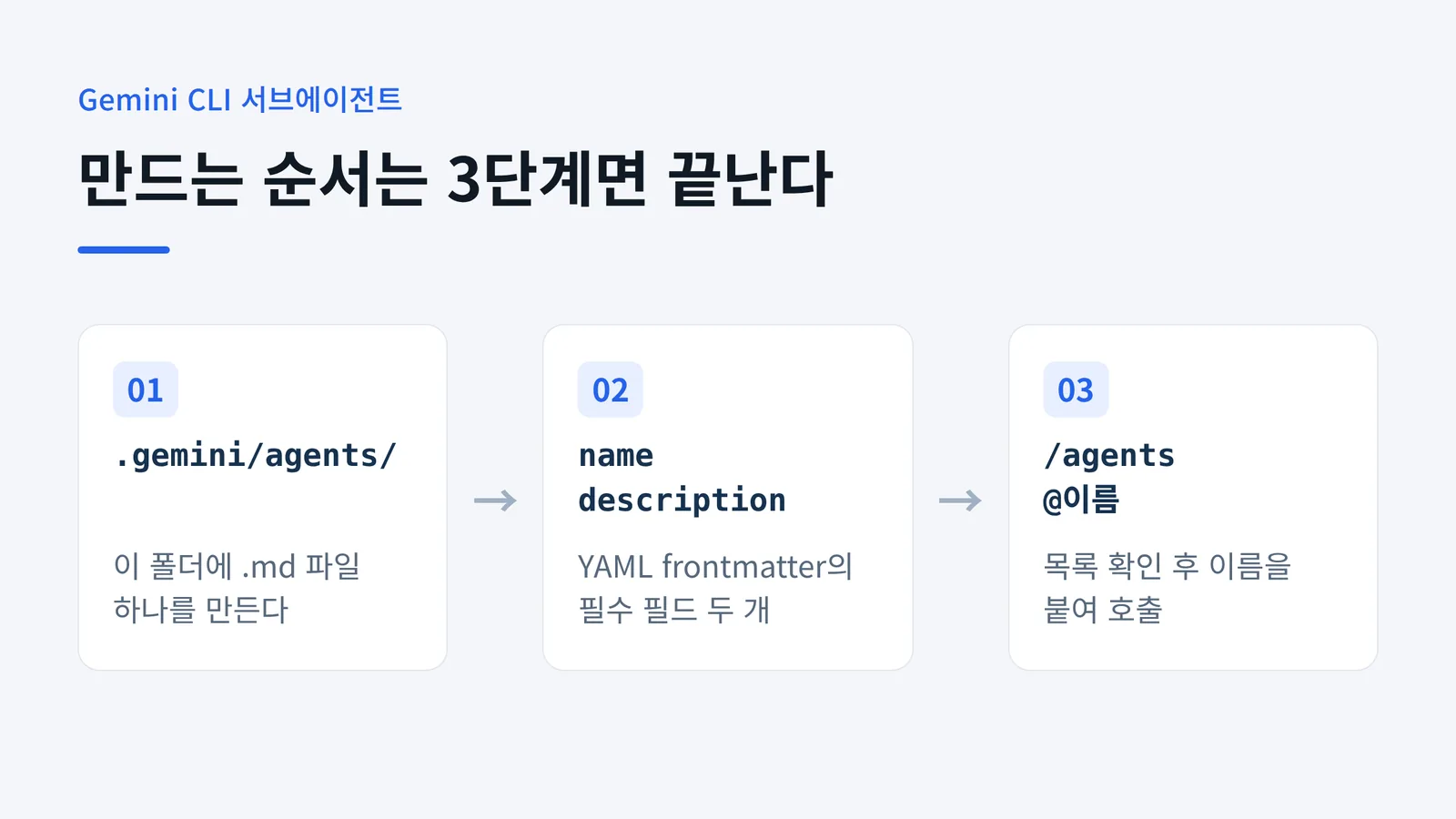
.gemini/agents/ folder. Put a YAML frontmatter block wrapped in --- at the top, fill in just two fields — name and description — and you have met the minimum requirement."
After that, check it with the /agents command and invoke it with @agent-name.
The subagent feature landed in April 2026. The announcement post on the Google Developers Blog is dated April 15, while the GitHub release discussion lists v0.38.1 / April 16. The one-day gap means you should read both sources together to pin down the exact date.
I searched in Korean and found almost nothing that covered subagents specifically. Most articles stop at installing and using Gemini CLI, so I ended up reading the official docs myself and writing this up.
1. What Is a Gemini CLI Subagent?
A subagent is a "specialist" that the main Gemini agent hires for a specific job. Each one has its own system prompt and persona, an explicitly allowed set of tools, and — crucially — its own independent context window. It is a way of splitting up work that a single main agent used to shoulder entirely on its own.
The key point is that context stays separated. Instead of dumping everything a subagent investigated straight back into the main agent, it returns only a summary or a formatted response.
That keeps the main agent's context from being polluted with miscellaneous detail — the phenomenon often called "context rot." And because several subagents can run at the same time, throughput goes up too.
2. Where Should Subagent Files Live?
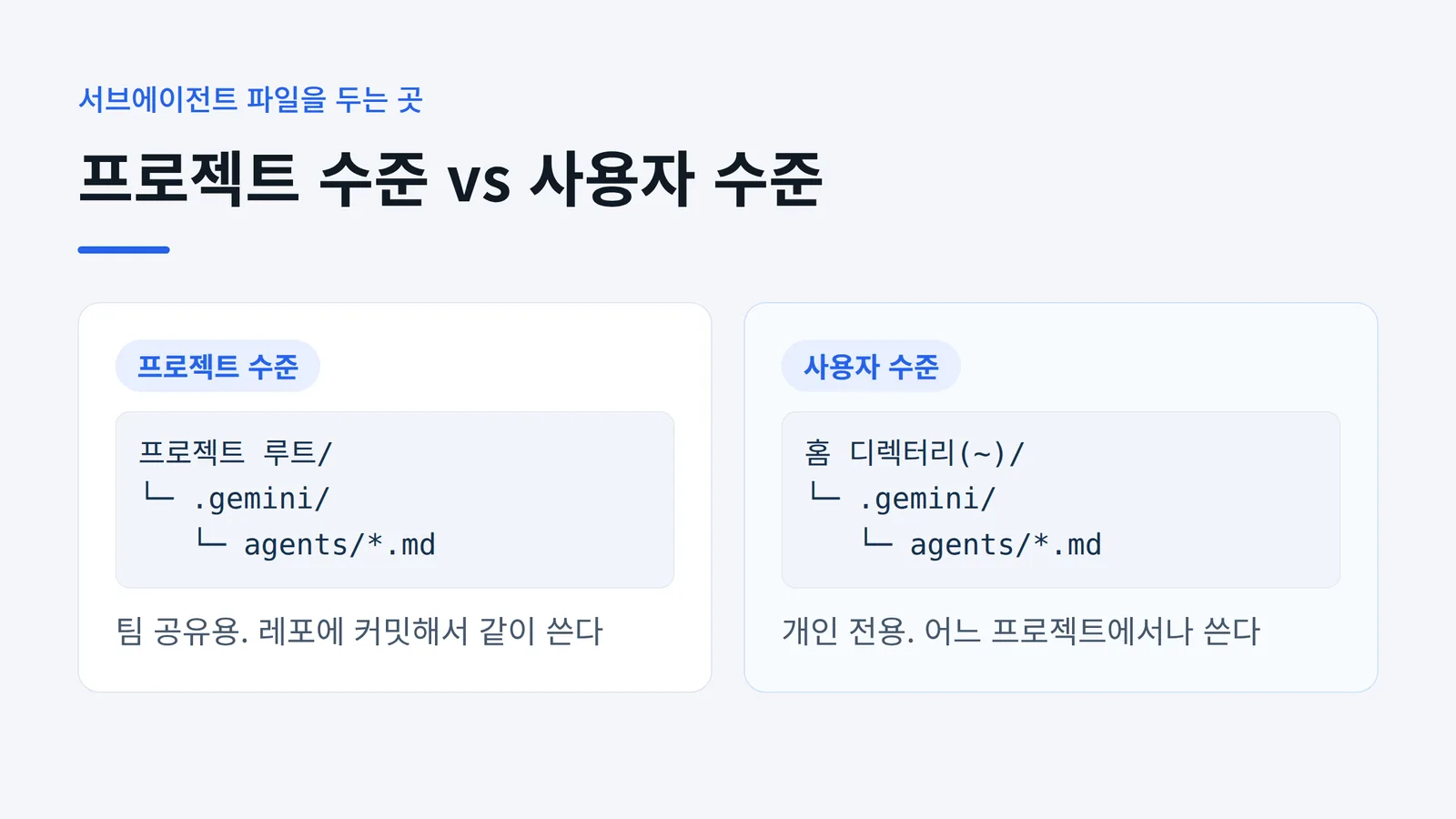
There are exactly two locations. Agents meant for a single project go under .gemini/agents/ at the project root; personal agents you want available account-wide go under ~/.gemini/agents/ in your home directory. Both use the .md extension.
| Scope | Path | Use case |
|---|---|---|
| Project level | .gemini/agents/*.md |
Shared with the team. Committed to the repo |
| User level | ~/.gemini/agents/*.md |
Personal only. Available in any project |
I keep the rule simple: if the agent needs to know this repo's code conventions, it belongs at the project level; if it is a general-purpose tool I use everywhere, it belongs at the user level.
Being able to just drop a file into .gemini/agents/ and commit it to share with the team is genuinely convenient. Since it is plain markdown rather than a config file, it is easy to review too.
3. How Do You Write a Subagent File?
The file must begin with a YAML frontmatter block wrapped in triple dashes (---). The official docs spell this out with a capitalized MUST. Below the frontmatter, the body describes how the agent should behave — and that body becomes its system prompt.
How Many Fields Are Required?
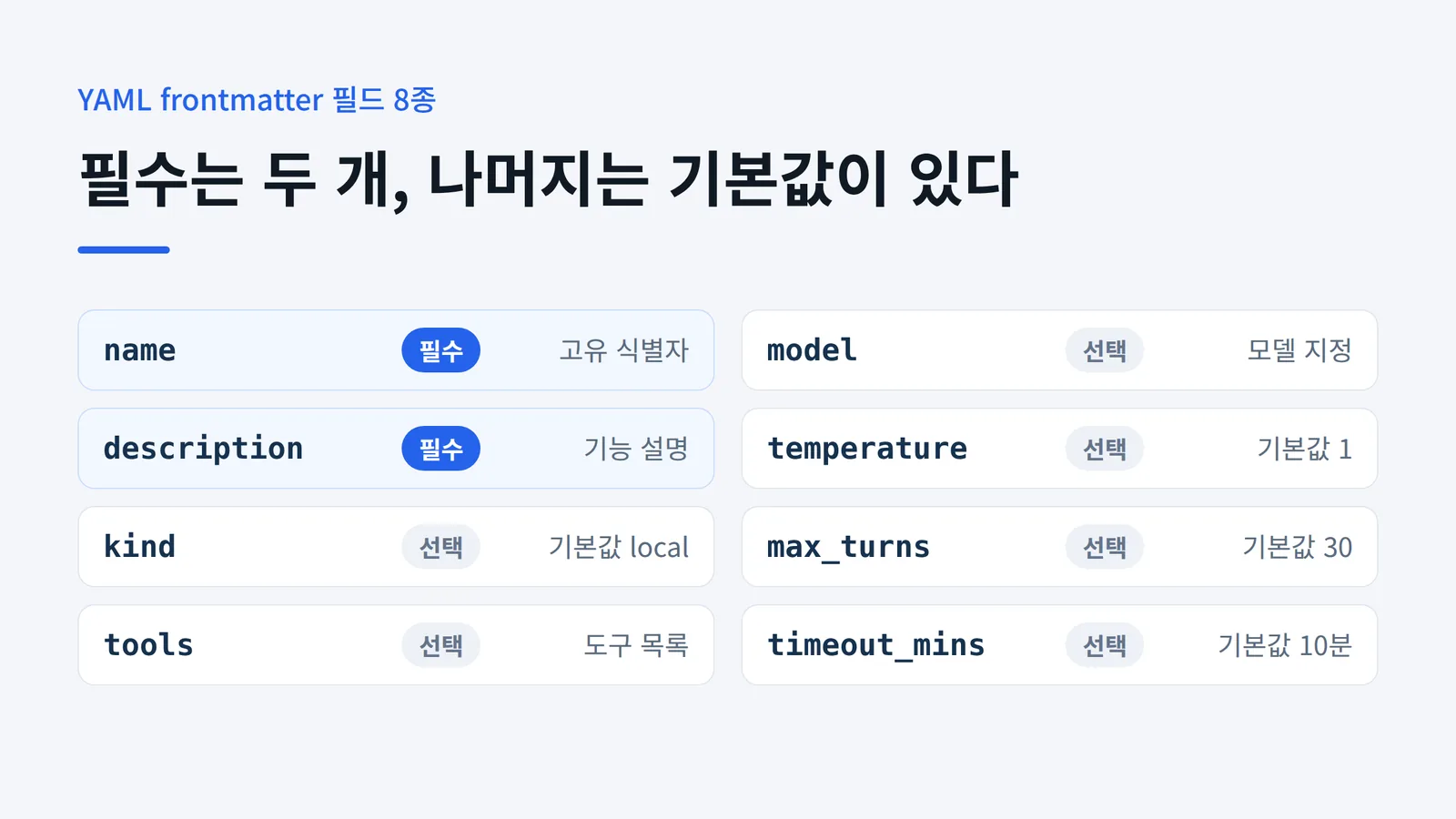
Only two are required: name and description. The other six are all optional and come with defaults.
| Field | Type | Required | Description / Default |
|---|---|---|---|
name |
string | Required | Unique identifier, used as the tool name |
description |
string | Required | What this agent does |
kind |
string | Optional | local (default) or remote |
tools |
array | Optional | List of accessible tools |
model |
string | Optional | Pin a specific model |
temperature |
number | Optional | 0.0–2.0 (default 1) |
max_turns |
number | Optional | Maximum conversation turns (default 30) |
timeout_mins |
number | Optional | Maximum run time in minutes (default 10) |
Do not phone in the description. With automatic delegation (covered below), the main agent reads exactly this text to decide which subagent to call.
The defaults of 30 for max_turns and 10 for timeout_mins are worth committing to memory. Agents with a broad investigation scope will hit these two limits first.
What Does a Real File Look Like?
Structurally, it looks like this.
---
name: code_reviewer
description: Reads changed code and flags convention violations and potential bugs
kind: local
temperature: 0.2
max_turns: 20
timeout_mins: 15
---

You are a code review specialist.
Read only the changed files, then report convention violations and
potential bugs as an itemized list.
Do not modify the code yourself. Leave only findings and their rationale.
I left the tools field out on purpose. I was not able to confirm the list of valid tool names during this write-up, so in practice it is safer to check which tools are actually available via /agents first.
Dropping temperature to 0.2 is a personal preference. I have found it works better to go low for consistency-critical work like reviews, and to stay near the default of 1 for idea generation.
4. How Do You Invoke a Subagent?
There are two ways: automatic delegation, and explicit delegation using the @ syntax. Managing and inspecting registered subagents is handled by the /agents command.
Automatic vs. Explicit Delegation
Automatic delegation is when the main agent looks at the task and picks a suitable subagent on its own. You do not specify anything.
Explicit delegation is when you name the subagent directly with @subagent-name. The official docs and the announcement post give examples like these.
@codebase_investigator Map out the relationship between...@codebase_investigator Please map out the authentication flow@frontend-specialist Review the app and point out improvements@generalist Update the license headers across the whole project
As you can see, there is no special syntax. Attach the name to @ and give instructions as you normally would.
I also could not confirm whether a subcommand like /agents create exists. The official docs defer the detailed syntax to a separate reference document, so writing the file by hand is the surer route.
5. Which Subagents Ship by Default?
Three subagents are usable right after installation: @cli_help, @codebase_investigator, and @generalist. The feature itself is also enabled by default, so there is nothing to switch on.
If this is your first time, rather than jumping straight to writing files, a good way to get a feel for it is to have @codebase_investigator take a pass over your project.
If you want to disable subagents entirely, set "enableAgents": false in settings.json.
6. What Constraints Apply When Designing an Agent Team?
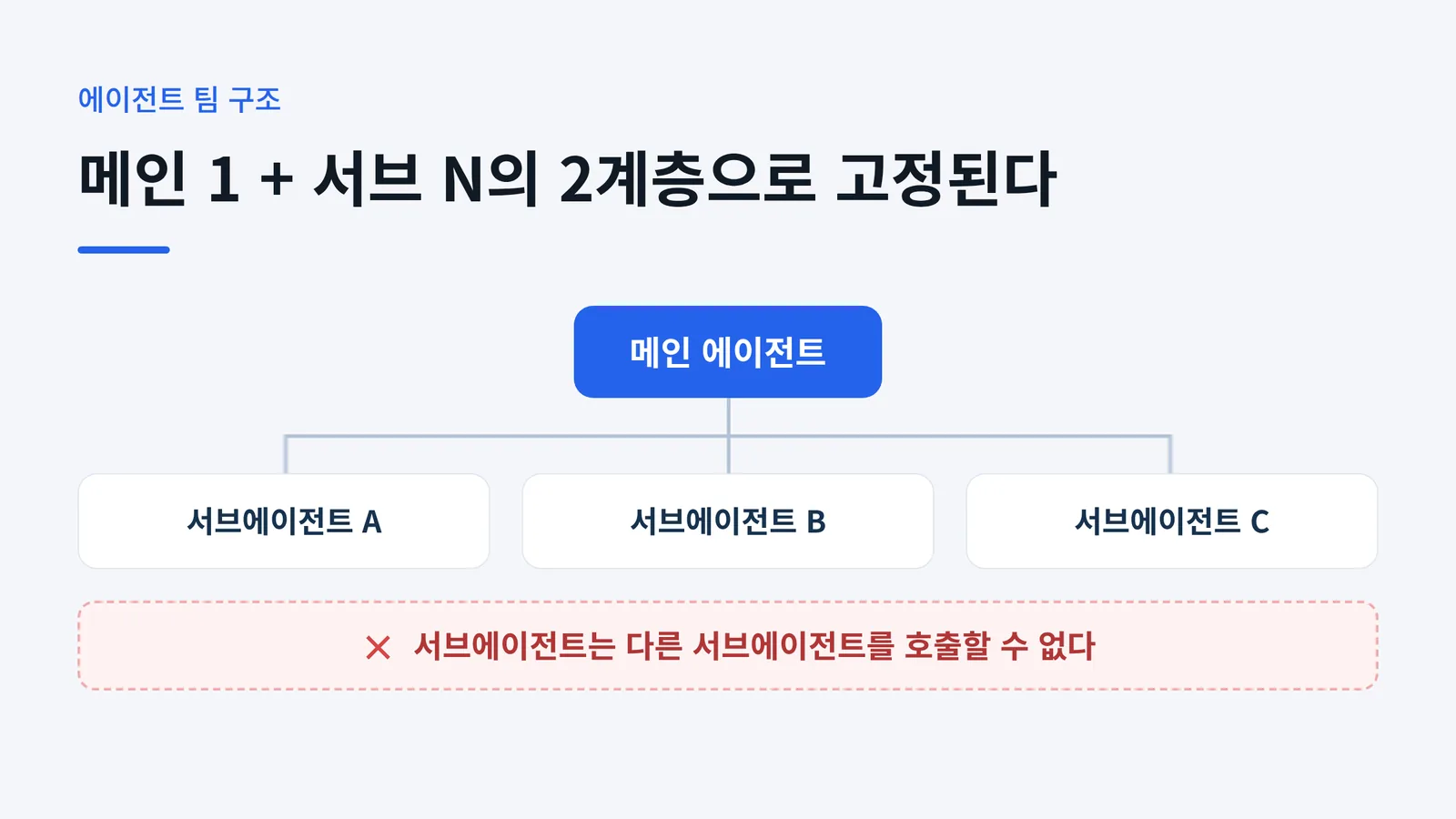
Here is the most important constraint: a subagent cannot call another subagent. The official docs state it plainly — "subagents cannot call other subagents" — and it is a deliberate design choice to prevent infinite loops and token waste. In other words, a Gemini CLI agent team is locked into a two-layer structure: one main agent plus N subagents.
Designing without knowing this wastes effort. You cannot build a chain like "the researcher calls the writer, and the writer calls the reviewer."
Instead, you place the main agent as the orchestrator: it receives each result and hands it off to the next agent. The shape is radial, not hierarchical.
One more thing. A subagent can only use the tools you explicitly grant it. Tool isolation is the default, so if you do not give an investigation agent write permission, it cannot touch your files. It looks like a limitation, but it is closer to a safety mechanism that prevents accidents.
| Constraint / Setting | Details |
|---|---|
| Layers | Fixed at two: 1 main + N subagents |
| Sub → sub calls | Not allowed (prevents infinite loops and token waste) |
| Tool access | Only explicitly granted tools |
| Feature on/off | Enabled by default; disable with "enableAgents": false in settings.json |
Remote subagents (kind: remote) do exist as well. There is a separate "Remote Subagents" document for them, but I did not open it this time, so the detailed behavior is outside the scope of these notes.
7. What Do You Need Before You Start?
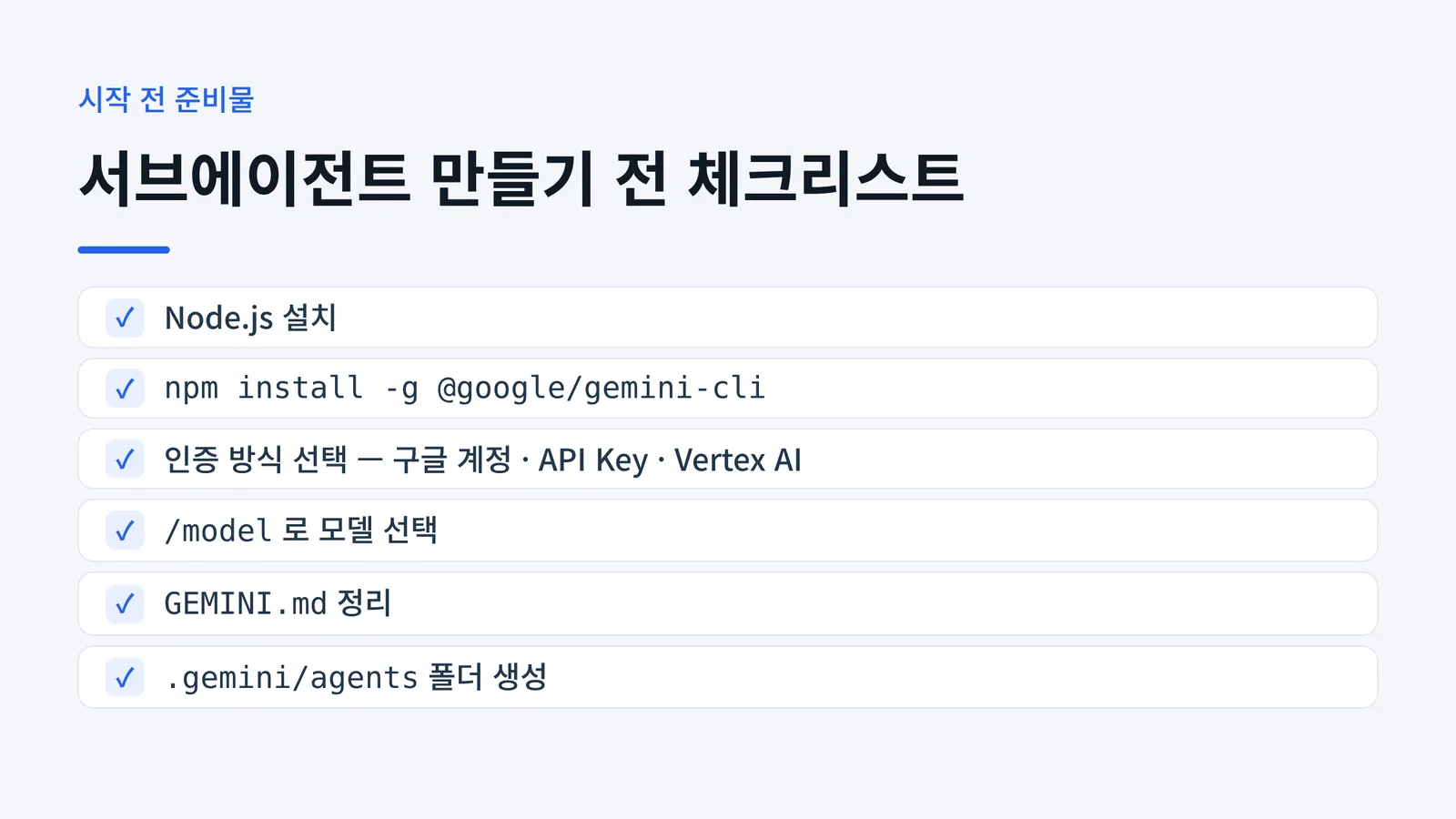
If you already have Node.js installed, a single line — npm install -g @google/gemini-cli — finishes the installation. On first run, authenticate with one of three options (Google account login, API key, or Vertex AI), then pick a model such as gemini-3-pro-preview or gemini-2.5-pro with the /model command, and you are ready.
One more thing worth setting up is GEMINI.md, a file where you record project context and working rules.
The load order is ~/.gemini/GEMINI.md (global) → project root → subdirectories, with the more deeply nested file taking precedence. Use /memory show to see what is currently loaded and /memory refresh to reload. You can also import other files with @.
I would recommend sorting out GEMINI.md before you build any subagents. Put shared team rules there and split role-specific instructions into the individual agent files — that cuts down on duplication.
8. Wrapping Up
Here is a short summary against three criteria.
Setup difficulty — Low. One markdown file with two required fields (name, description) is enough to get it working. The biggest advantage is that there is no separate configuration UI or registration process.
Structural clarity — Good. The split between project level (.gemini/agents/) and user level (~/.gemini/agents/) is simple, and all eight fields have defined defaults, so there is little room for confusion. That said, the list of valid tool names for tools and the /agents create syntax both require checking a separate reference.
Usefulness for team design — It depends. The two-layer limit is strict, so complex multi-stage pipelines do not port over directly. Even so, context isolation and parallel execution alone deliver a lot.
Next time, I plan to actually build two or three subagents, run them, and write up the results. 😊
9. Frequently Asked Questions (FAQ)
Q1. Since when have Gemini CLI subagents been available?
Since April 2026. The announcement post on the Google Developers Blog is dated April 15, while the GitHub release discussion lists both v0.38.1 and April 16. The two sources are one day apart, and the version number appears only in the GitHub discussion. So it is safer to treat it with some latitude as "April 2026, around v0.38.1."
Q2. Where do subagent files get saved?
One of two places. Agents you want to share with your team go under .gemini/agents/ at the project root; personal ones go under ~/.gemini/agents/ in your home directory, as .md files. The format is identical in both cases, and the file must begin with a YAML frontmatter block wrapped in ---.
Q3. Which YAML frontmatter fields are required?
Two: name and description. name is the unique identifier used as the tool name, and description explains what the agent does. The remaining six — kind, tools, model, temperature, max_turns, timeout_mins — are optional and each has a default: local for kind, 1 for temperature, 30 for max_turns, and 10 for timeout_mins.
Q4. Can I call one specific subagent directly?
Yes. Use the @subagent-name syntax — for example, @codebase_investigator Please map out the authentication flow. If you do not name one, the main agent picks a suitable subagent for the task and delegates on its own. Listing and managing registered agents is done with the /agents command.
Q5. Can a subagent call another subagent?
No. The official docs state that subagents cannot call other subagents. It is a design decision meant to prevent infinite loops and token waste. As a result, a Gemini CLI agent team is limited to a two-layer structure of one main agent plus N subagents. If you need a multi-stage flow, you have to build it so that the main agent coordinates the sequence.
Q6. Can the subagent feature be turned off?
Yes. The feature is enabled by default, and you can disable it by setting "enableAgents": false in settings.json. Note that the three built-in subagents are @cli_help, @codebase_investigator, and @generalist — turning the feature off makes those unavailable as well.
References: Gemini CLI official documentation (subagents.md), the Google Developers Blog subagent announcement post, GitHub Discussion #25562, and Korean-language Gemini CLI usage material.